
How long will GTA 6 take to download? Up to 212 GB at your internet speed, and how to speed it up on PS5 and Xbox
Rockstar puts the GTA 6 pre-load at up to 212 GB. A table of download times from 10 Mbps to 1 Gbps, how to test your real speed, and the PS5 and Xbox settings that let it download overnight in rest or sleep mode, from Rockstar, PlayStation and Xbox support pages.
The number to plan around: up to 212 GB
Rockstar's pre-load announcement of 3 November 2026 gives one size for Grand Theft Auto VI: "The pre-load file will require up to 212 GB depending on your device." Rockstar's Pre-Load FAQ repeats it as "up to 212 GB of available space". Both were checked on 12 November 2026.
At a steady 100 Mbps, 212 GB takes about 4 hours 43 minutes. At 25 Mbps it takes almost 19 hours. That gap is why the download matters more than the storage for many players, and why the reliable plan is to start early and let the console work overnight.
The same announcement moved the pre-load forward. Digital pre-loading on PlayStation 5 began on 10 November 2026 at midnight local time; on Xbox Series X|S it began globally on 10 November at 12 a.m. GMT. Code-in-box copies were due in shops from 12 November. The game unlocks on 19 November 2026.
How long 212 GB takes at your line speed
The table divides 212 GB by the advertised speed of common broadband plans. It is a best case: it assumes the whole line is free and the download runs at full speed from start to finish, which real connections rarely do. Plan for longer, not shorter.
| Line speed | 212 GB at full speed |
|---|---|
| 10 Mbps | about 47 hours |
| 25 Mbps | about 19 hours |
| 50 Mbps | about 9.5 hours |
| 100 Mbps | about 4 hours 45 minutes |
| 250 Mbps | about 1 hour 55 minutes |
| 500 Mbps | about 57 minutes |
| 1 Gbps | about 28 minutes |
The arithmetic is short enough to redo with your own numbers. Broadband speed is sold in megabits per second, while file sizes are given in gigabytes, and one byte is eight bits. 212 GB is therefore about 1,696,000 megabits. Divide that by your speed in Mbps and you get seconds; divide by 3,600 for hours. The table uses decimal gigabytes (1 GB = 1,000 MB), which is how the figure reads in Rockstar's announcement.
"Up to 212 GB" is also an upper bound for available space, not a promise that every console downloads exactly that much. The size that applies to you is the one your own console shows. On PS5, PlayStation's download troubleshooting page explains where: Game Library, select the game, then … (more) > View Product, where "the minimum free space appears on the right of the screen."
Measure what your console actually gets
The speed on your contract is not the speed your console sees. Both platforms have a built-in test, and the result is the figure to put into the table.
- PS5: Settings > Network > Connection Status > Test Internet Connection. PlayStation lists this as the first check when a download is stuck.
- Xbox Series X|S: the console's network settings run a connection test and show the detected download speed. Xbox Support says to compare it "against your internet service provider's subscription plan" in its guide to slow game or app downloads.
If the result is far below your plan, Xbox Support names the usual causes. Other devices in the home compete for the same bandwidth. Wi-Fi competes with other wireless devices and neighbouring networks. Your provider's network can slow down at busy times. And a game running, even in the background, slows the download too.
Five changes that shorten the wait
These come from the PlayStation and Xbox support pages. None of them costs anything.
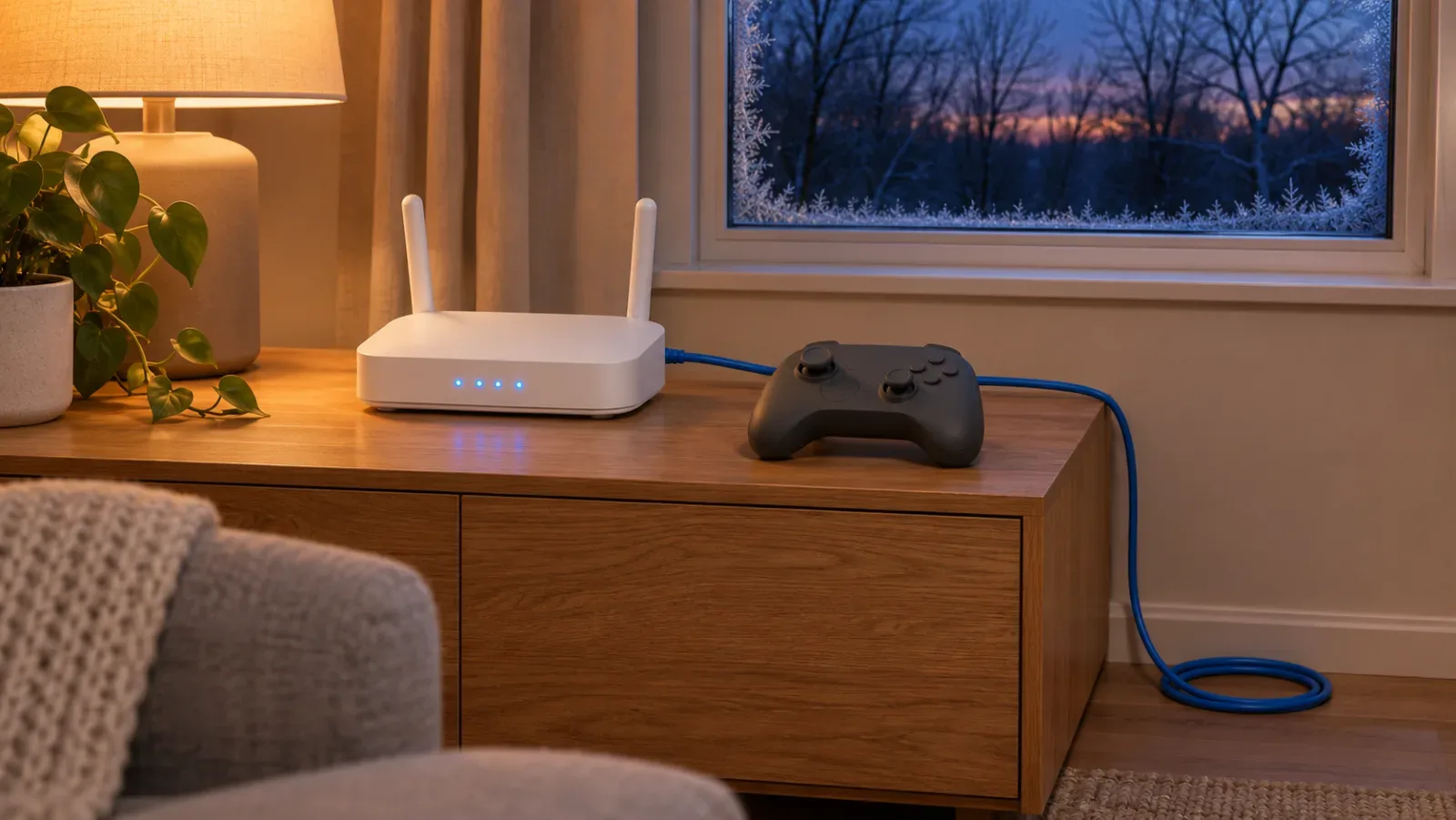
- Use a cable if you can. Xbox Support recommends a wired connection to the router where possible. If you cannot run a cable, it suggests moving the console to the 5 GHz band of a dual-band router and the other devices to 2.4 GHz; 5 GHz has a shorter range but usually less overlap with nearby networks.
- Pause the other big downloads. Phone backups, PC game updates and 4K streams all share the line. Xbox Support also points to Quality of Service (QoS) on the router, if yours has it, to prioritise the console.
- Run it overnight. Xbox Support's own workaround for peak-time slowdowns is to start large downloads "late in the evening to let them run overnight, during off-peak hours."
- Do not play while it downloads. A running game takes bandwidth and console resources. Close it, or put the console into rest or sleep mode.
- Restart a stalled download, not the whole process. On PS5, open Downloads/Uploads in the control center, select the download, then Pause and Resume. If that fails, PlayStation's advice is Cancel and Delete, then download again from the Game Library.
Let it download while the console sleeps
Rockstar's FAQ sets the conditions for an automatic pre-load. On PS5, players "must have auto-downloads enabled, and their console must be powered on or powered off to Rest Mode." On Xbox Series X|S, players "must have automatic updates enabled, and their console must be powered on or in Sleep mode."
On PS5 there is one more switch that is easy to miss. PlayStation's power-saving page lists the features available in rest mode, and the one that matters here is Stay Connected to the Internet (Settings > System > Power Saving > Features Available in Rest Mode). With it on, the console can download pre-ordered games in rest mode. Without it, a PS5 in rest mode is not downloading anything.
On Xbox, automatic updates live under Profile & system > Settings > System > Updates. Rockstar's FAQ links to Xbox's pages on system updates and power modes for the exact setting.
If your broadband has a monthly data cap
212 GB is a large share of a capped plan. Xbox Support's page on managing bandwidth for game downloads notes that some providers limit downloads to a set number of gigabytes per month, and suggests that if you are close to the limit, you restrict downloads "to just the games you're going to play soon." It shows how: clear Keep my games & apps up to date in the update settings, and updates then wait until you launch the game.
Check your cap and current usage with your provider before the download starts, not after. A mobile or satellite plan is where this bites hardest. If your plan has an unmetered night window, that is when to run the download. That is a question for your provider, not a setting on the console.
If you bought the boxed version or have not pre-loaded
Grand Theft Auto VI's physical edition holds a download code, not a disc, so a box bought on 12 November or later still means downloading the full game. The same is true for anyone who buys digitally on launch day. In both cases the download overlaps with millions of others, and the table above is a minimum, not an estimate.
If you are on a slow line and still have time before 19 November, the most useful thing you can do is start now. A download that runs over two or three nights ends with a game that is ready the moment it unlocks, rather than one that starts downloading at unlock time.
One PlayStation-specific note: PlayStation's pre-order page says that after release you can cancel a pre-order and request a refund within 14 days only if the content "hasn't started to download". A pre-load counts as a download, so start it only once you are sure.
What to do before 19 November
Run the connection test, find your speed in the table and double it for a realistic margin. If the result is more than a day, start the download tonight with the console in rest or sleep mode and the cable plugged in. Then check that the space is there: our guide to making room on PS5 and Xbox Series covers that, and the launch-week checklist covers everything else. For the exact unlock time in your region, see GTA 6 launch day by region.
Difficulty: Easy; 10 minutes of settings, then hours of waiting depending on your line
Jump to a step 6 steps
- 1.Find the exact size your console shows: up to 212 GB according to Rockstar (checked 12 November 2026).
- 2.Run the console's internet connection test and look up your speed in the download-time table; double it for a realistic margin.
- 3.Connect the console by cable, or use the router's 5 GHz band, and pause other large downloads.
- 4.Turn on auto-downloads (PS5) or automatic updates (Xbox), and on PS5 Stay Connected to the Internet in rest mode.
- 5.Leave the console in rest or sleep mode overnight; on a capped plan, check your remaining data first.
- 6.If a download stalls on PS5, Pause and Resume it; if that fails, Cancel and Delete and download again.
-
Step 1
Find the exact size your console shows: up to 212 GB according to Rockstar (checked 12 November 2026).
-
Step 2
Run the console's internet connection test and look up your speed in the download-time table; double it for a realistic margin.
-
Step 3
Connect the console by cable, or use the router's 5 GHz band, and pause other large downloads.
-
Step 4
Turn on auto-downloads (PS5) or automatic updates (Xbox), and on PS5 Stay Connected to the Internet in rest mode.
-
Step 5
Leave the console in rest or sleep mode overnight; on a capped plan, check your remaining data first.
-
Step 6
If a download stalls on PS5, Pause and Resume it; if that fails, Cancel and Delete and download again.
Sources
- Grand Theft Auto VI Pre-Load Begins on November 10
- Grand Theft Auto VI Pre-Load FAQ - Rockstar Games Customer Support
- How to troubleshoot game downloads from PlayStation Store
- Troubleshoot slow game or app downloads | Xbox Support
- How to change power-saving settings on PlayStation consoles
- Manage network bandwidths for game downloads on Xbox
- How to pre-order and auto-download games from PlayStation Store